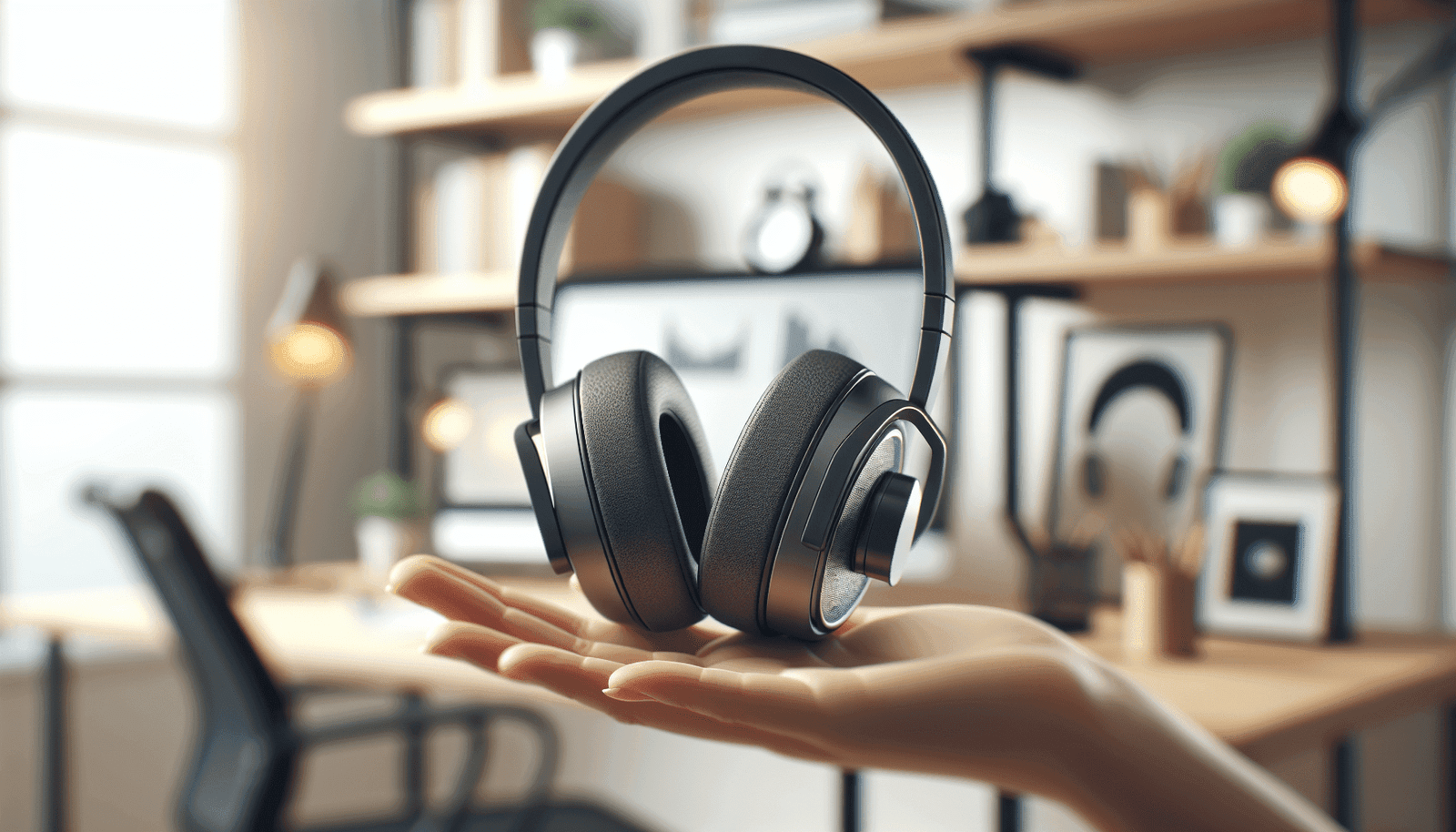
Have you ever been on an important Zoom call and found yourself distracted by an irritating echo? There’s no denying that in the world of remote work and virtual meetings, Zoom has become indispensable. However, technical glitches like echo problems can make communication cumbersome. Fortunately, you don’t have to endure these inconveniences any longer. This guide will help you understand how to fix echo problems in Zoom, making your meetings smooth and productive.

Understanding Echo in Zoom
Echo occurs when the audio input of a participant captures and retransmits the audio output, creating a feedback loop. This can be distracting and disrupt the flow of conversation, making it hard to focus. Before we jump to solutions, it’s essential to grasp why these problems occur so you can prevent them effectively.
Common Causes of Echo
Inadequate Equipment: Using low-quality microphones and speakers can often result in feedback loops.
Incorrect Audio Settings: Misconfigured audio settings in Zoom can sometimes lead to echoes.
Multiple Devices: If you have Zoom open on several devices in close proximity, the sound from one can be picked up by another’s microphone.
Room Acoustics: Sound bouncing off hard surfaces like walls and floors can amplify any existing echo problems.
Tweaking Zoom Settings
The first step is to make sure your Zoom settings are correctly configured. Fine-tuning these settings can often resolve echo issues.
Muting Microphones
Muting microphones while not speaking is a simple but effective way to cut down on echo. Here’s how to do it:
- Click on the microphone icon in the bottom left corner of your Zoom screen.
- Select “Mute” to silence your microphone.
- Encourage other participants to do the same when they are not speaking.
Testing Your Audio
Zoom offers a built-in feature to test your audio before joining a meeting. This allows you to address any potential issues proactively.
- Open Zoom and click on your profile picture.
- Go to “Settings.”
- Select “Audio.”
- Click on “Test Speaker and Microphone.”
This allows you to hear how audio will sound and make necessary adjustments before you go live.
Adjusting Volume Levels
High volume settings can sometimes cause feedback. Lower the volume on your speakers to minimize the chance of an echo forming.
Enabling the Suppress Persistent Background Noise Feature
Zoom has a handy feature that automatically reduces persistent background noise.
- Go to “Settings.”
- Click on “Audio.”
- Scroll down to “Suppress background noise.”
- Set this feature to ‘Auto’ or ‘High’ to ensure persistent noise is minimized.
Fine-Tuning Your Equipment
Investing in quality audio equipment can make a significant difference in sound quality during Zoom calls.
Headphones vs. Speakers
Using headphones can be an instant remedy to echo problems as they prevent sound from being picked up by the microphone. Choose over-ear headphones for maximum comfort and sound isolation.
Microphone Choices
Invest in a good quality microphone. Condenser mics often offer better sound quality and are less prone to picking up background noise compared to computer microphones.
External Speakers
If headphones are not viable, consider using high-quality external speakers with noise-canceling features integrated into them.
Testing Equipment
Before important meetings, always perform a soundcheck to ensure all your devices are working smoothly together.
Room Setup and Environment
Rethinking the physical environment of your call can drastically reduce echo.
Sound Absorbing Materials
Introduce carpets, drapes, and furniture to absorb sound. This can reduce the incidence of echo by preventing sound from bouncing around the room.
Optimal Placement
Position your microphone and speakers as far apart as possible to reduce the chances of feedback.
Quiet Zone Creation
Choose a quiet, small area of your home or office for calls. Echoes are more prevalent in large, empty rooms.
Managing Multiple Devices
Frequently, echoes are caused by poor handling of multiple devices connected to the same meeting.
Disconnect Unnecessary Devices
Make sure that any other device logged into the same Zoom call is either muted or completely disconnected from audio.
Use One Device at a Time
Stick to using one device for both audio and video to prevent routing errors.
Troubleshooting Common Problems
Encounter an echo despite all precautions and adjustments? Additional troubleshooting steps can help resolve issues.
Rejoin the Meeting
Sometimes rejoining the meeting can fix any hidden glitches or temporary issues contributing to echo.
Restart Zoom or Device
Restarting Zoom or your device can resolve software-specific glitches that are challenging to track otherwise.
Update Zoom Software
Always ensure that your Zoom client is up-to-date. Software updates often contain bug fixes and enhancements that can resolve existing problems.
Contact Zoom Support
If none of the above solutions work, reach out to Zoom Support for personalized assistance.

Best Practices
Integrating a few best practices can keep future Zoom calls echo-free.
Educate Your Participants
Educate team members about the best practices to reduce echo, like muting their microphones when not speaking or using headphones.
Conduct Audio Checks
Before official meetings, conduct a brief audio check to address any possible issues in advance.
Consistency in Equipment
Use the same equipment whenever possible to avoid variances in audio settings and performance.
Conclusion
Eliminating echoes in Zoom is achievable with an understanding of the causes and a few straightforward remedies. By adjusting settings, optimizing equipment use, and being mindful of your environment, you can significantly improve the quality of your virtual meetings. With these tips in hand, you’re well on your way to becoming a Zoom pro, ensuring every meeting is echo-free and productive.